Prepare Your Computer
Turn off your power supply and monitor. Unplug the power supply. Now unplug everything from the back of the computer. Take the left side (as you look at the front) of the computer case off. On some cases the top and sides are one piece, if so remove the whole thing. Vacuum the inside of the computer, especially around the fans. It may be necessary to remove the front cover to adequately clean in front of the front fan. A can of compressed air helps tremendously with this.
This is a great time to add any hardware!
Put it all back together. Plug everything back in. Turn on your power supply. Start up the computer and make sure everything works. Shut it off again.
Installation
Start your computer and insert the XP disk. If your computer supports booting from a CD you may need to change the bios startup options. The key you press to access the bios may differ depending on the make of your computer. Most use the DELETE key, if not then it will be one of the FUNCTION keys (F1, F2, etc.) Save changes and exit. If your computer does not support booting from CD then insert the first Windows XP floppy disk.
As the system boots you will see a message at the bottom of the screen:
"Press F6 if you need to install a 3rd party SCSI or RAID driver." If you do, follow the instructions.
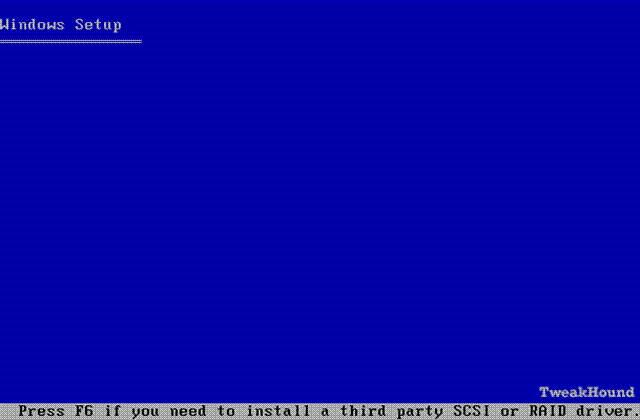
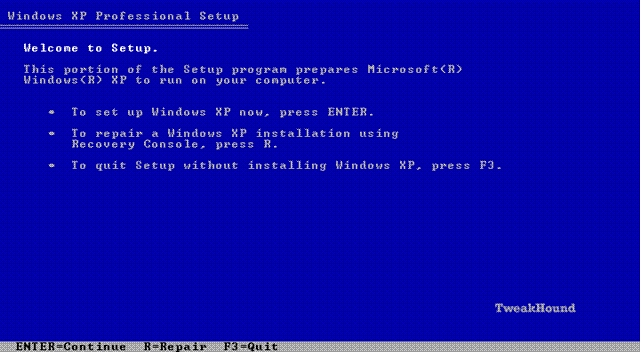
Now setup begins. If you had another Operating System on your computer you will be asked what type of installation you want to perform. NEVER, EVER UPGRADE AN OPERATING SYSTEM!!! You will perform new installation.
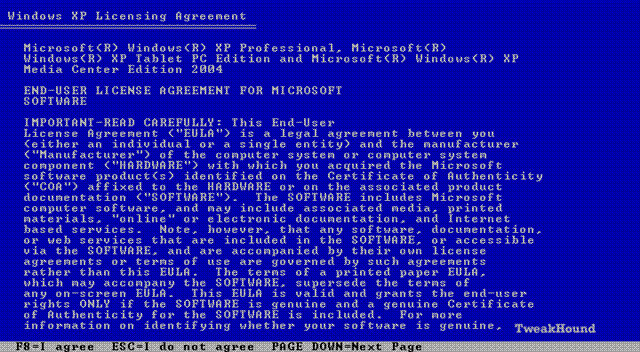
Next comes the ever popular EULA, press F8 and move on.
If there are partitions on your drive press D to delete them. Then press C to create a new partition.
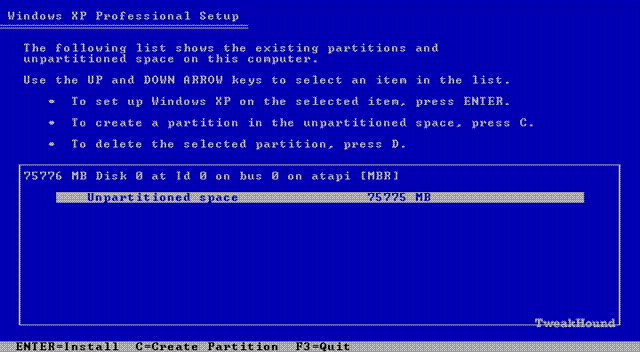
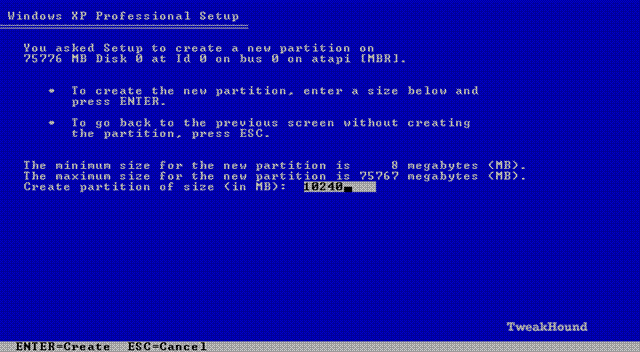
If you create or resize partitions BE CAREFUL, you will destroy data on other partitions if you do this. On a computer with a single hard drive I usually use a partition of around 10gb for Windows XP. I install the applications on the same drive and I use a backup program. It makes things easier. If you desire the utmost speed and efficiency, put Windows XP and the applications on a drive by itself with no other partitions. Given the size of hard drives these days this may be expensive and/or impractical. After pressing C the following screen will appear. Type in a size for your partition and press the Enter key.
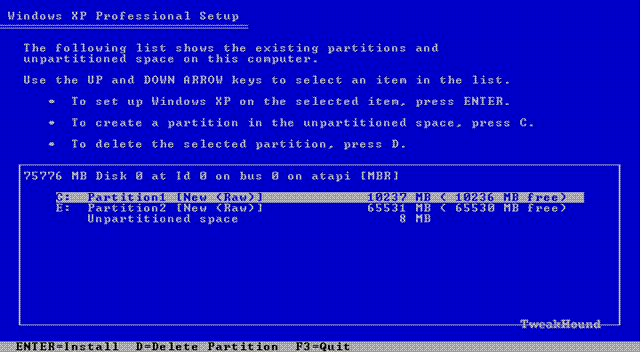
If everything looks right, use the arrow key to highlight the correct partition (should be C:) and press the Enter key.
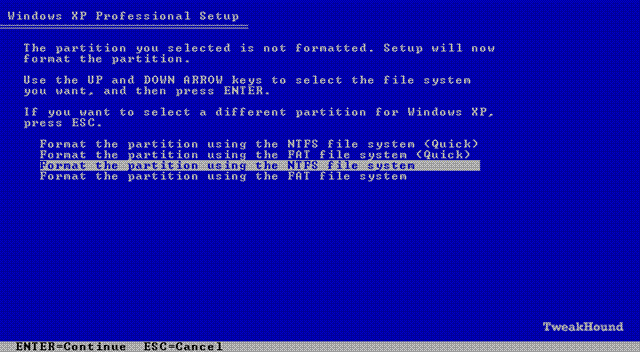
Format this partition using NTFS. Personally I think it's best not to use the "Quick" option. Using the standard option checks the disk for bad sectors. This will take a while. Some people have asked "I've heard that FAT32 is faster, why use NTFS?" First NTFS is only about 1-2% slower than FAT32 and only on drives/volumes 32GB in size or smaller. It is faster because of the overhead created by the security of NTFS. Second, you can eliminate the majority of that overhead by following my tweak guide. Third, the aforementioned security is exactly why you should use NTFS!
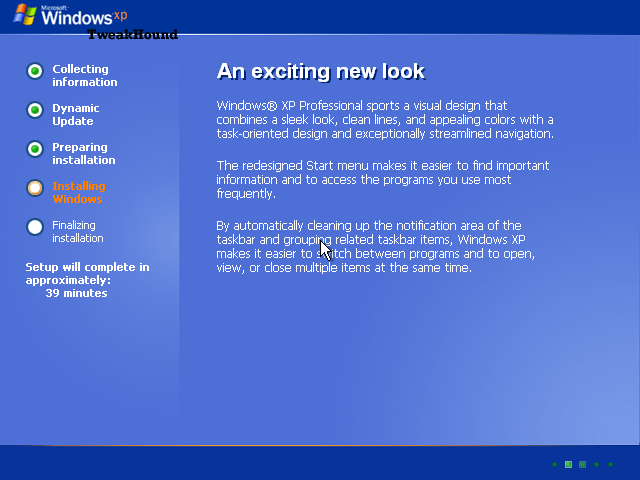
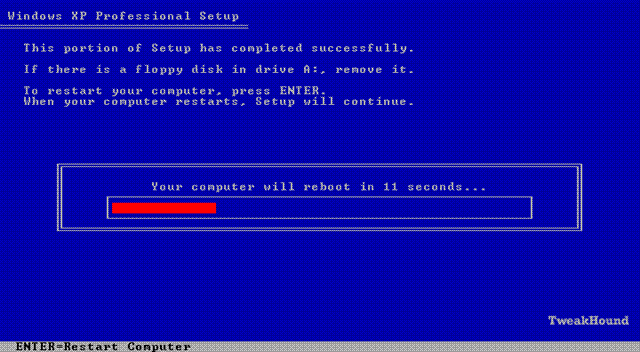
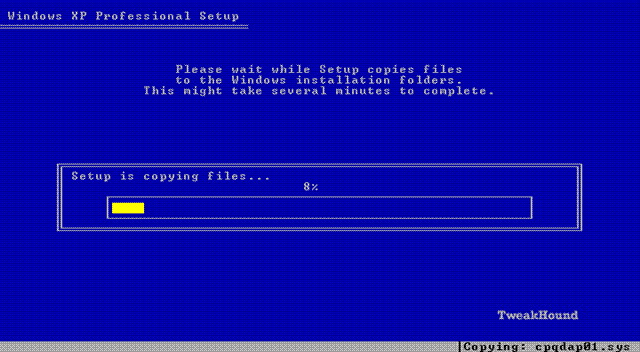
After formatting the setup files will be loaded and the system will reboot. At this point if you had a floppy in the drive then remove it.
As setup begins you'll be asked to fill in some info. Most are self-explanatory. Click on the Thumbnails for larger views if you desire.
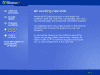
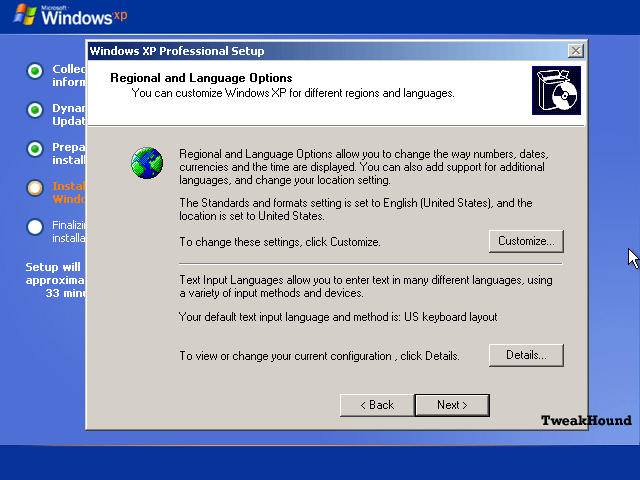
Windows will ask for Region and Language (the default is U.S., English)
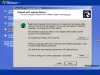
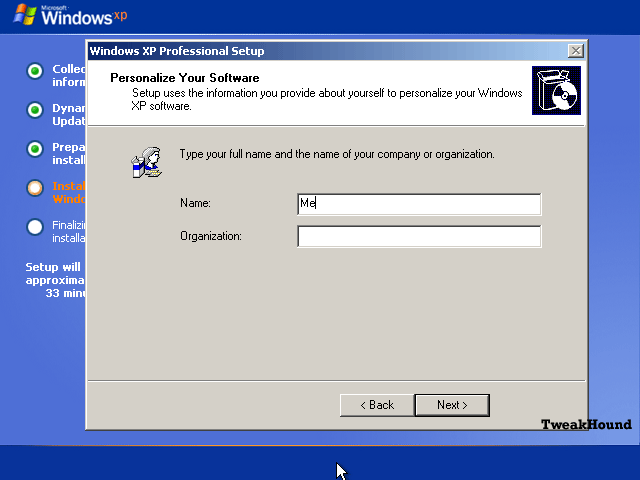
Your Name. First name will do.
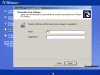
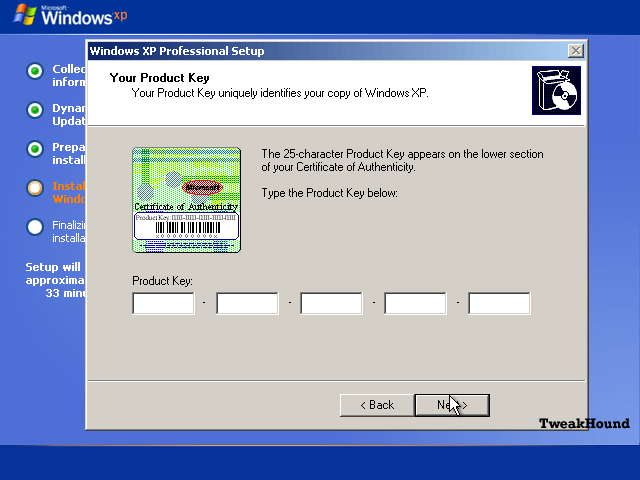
Your CD shipped with a Product Key. Enter it now.
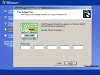
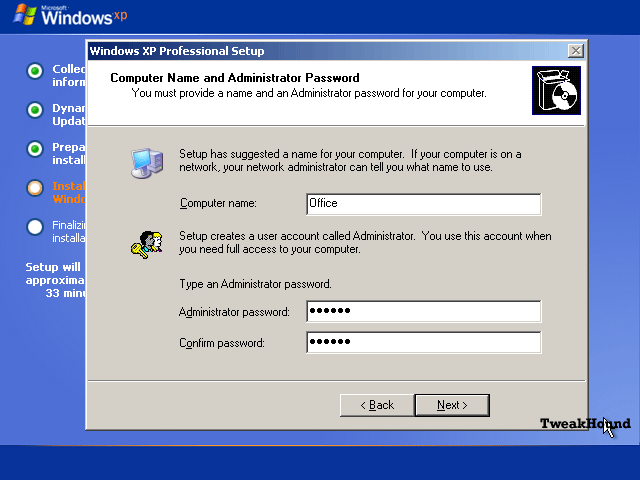
Computer Name and Administrator Password
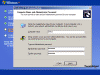
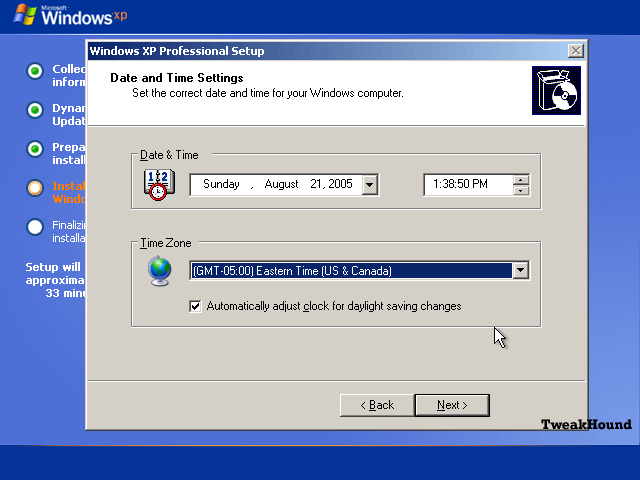
Time Zone, Date & Time
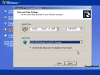
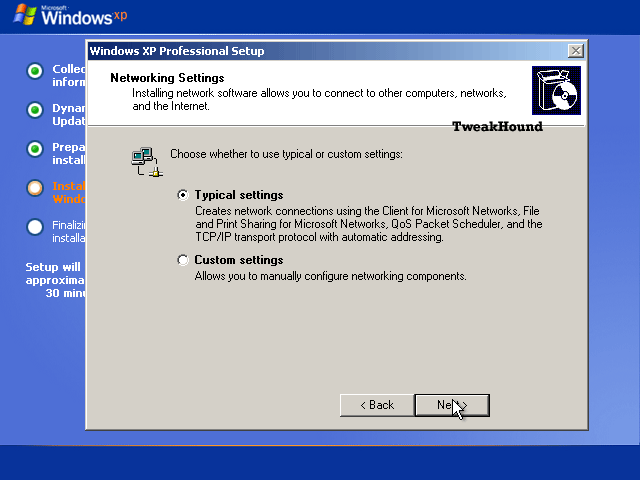
Network Settings. Leave it as is.
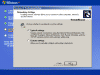
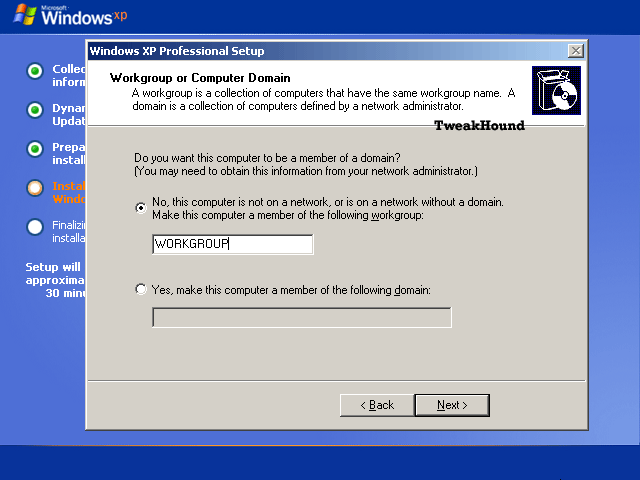
Type in your workgroup name or leave as is if you don't have one.